
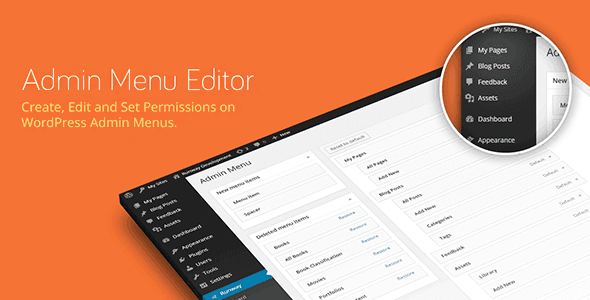
Admin Menu Editor Pro WP Toolbar Editor 1.5.1


- Secure Payment
- Support Monday to Friday
- With You Since 2018
$15.00 The original price was: $15.00.$5.99The current price is: $5.99.
quick summary
Admin Menu Editor Pro WP Toolbar Editor is a WordPress extension focused on controlling and customizing the top admin bar. It allows you to decide which elements each user profile sees, organize and clean up shortcuts, and tailor the bar to your actual workflow. It's especially useful for agencies, implementers, site administrators with multiple users, and projects where the admin bar has become chaotic or confusing.
What problem does it help solve?
In real WordPress installations, the top admin bar grows with each new plugin: duplicate shortcuts, menus you never use, distracting icons, and links your clients don't understand. Eventually, the bar stops being a workflow shortcut and becomes an endless list of unclear options.
If you've ever had a client ask you, "What's this icon up here?" or "Why do I see so many options I don't use?", the problem isn't with the user, but with a top bar that hasn't been adapted to the project. In that situation, constantly spending time explaining what can and can't be clicked becomes part of your daily routine.
Furthermore, when managing a site with multiple roles (editors, authors, store managers, external contributors), the admin bar displays access points that don't always correspond to each person's responsibilities. This opens the door to errors, unauthorized access to sensitive areas, and a general sense of clutter within the dashboard.
In projects using WooCommerce, LMS, forums, or other complex systems, the top bar quickly becomes cluttered with links to reports, tools, and advanced sections that should only be visible to the team that actually uses them. Without specific control over this bar, you're forced to live with a cluttered and unclear dashboard.
Why this solution makes a difference
Admin Menu Editor Pro WP Toolbar Editor focuses on a very specific aspect of the dashboard: the admin bar you see at the top of both the WordPress dashboard and the public-facing area when you're logged in. Instead of simply accepting the bar as generated by plugins, it allows you to decide what appears, in what order, and for whom.
In practice, this translates into more streamlined workflows. Users find the shortcuts they need without searching through irrelevant icons; you define what's displayed to each role and reduce repetitive questions about options that don't contribute to their work. When you start noticing that explaining the dashboard takes more time than teaching how to use the content, you need a clear system to simplify that environment.
On the other hand, adapting the admin bar to each user type improves their sense of control over the project. People log in, see only what's relevant to them, and better understand where to click. This reduces the margin of error, for example, by preventing visible access to advanced sections for users who should only be editing pages or products.
In team-managed projects, the difference is noticeable in the speed at which everyone moves within WordPress. The top bar transforms from a simple "icon drawer" into a panel of shortcuts specifically designed for how your site functions and the tasks performed daily.
Signs you need this product
- The top bar is full of icons and links that nobody uses, but which are still visible to all users.
- Clients or publishers complain that the WordPress dashboard is confusing and they don't understand the admin bar.
- You notice wasted time searching through long drop-down menus instead of having clear shortcuts.
- You manage a growing site with multiple extensions that add extra elements to the top bar.
- You prefer that certain roles do not see links to advanced options to reduce errors or unwanted changes.
- This appears when you start working with external collaborators and notice that you don't know how to limit what they see without complicating their access.
When does it make sense to use it (and when doesn't)
Admin Menu Editor Pro WP Toolbar Editor provides real value when the admin bar becomes cluttered due to the number of active extensions, or when you have user profiles with very different roles. In these cases, being able to rearrange and hide specific bar elements for each user type improves daily operations and reduces friction.
It's also ideal when you need the top bar to work in your favor: quick access to frequently used sections, a structure designed for your team, and a cleaner visual environment for non-technical users. In client projects, this allows you to deliver a dashboard ready for them to work without being distracted by irrelevant icons.
Conversely, this plugin isn't necessary if you manage a single personal blog with few extensions, where the toolbar remains simple and uses very few icons. If you're the only one using the panel, you know each shortcut, and the current structure doesn't bother you, configuring a custom toolbar wouldn't significantly improve your workflow.
Who it fits best for
- Agencies and developers who deliver projects to end clients and want a clean panel, adapted to their actual tasks.
- Site managers with multiple user roles (editors, authors, store managers, instructors, etc.) who need to limit and organize what each profile sees in the top bar.
- WordPress e-commerce managers who work daily with specific sections and want clear, distraction-free shortcuts.
- Marketing teams that access WordPress only for specific tasks and require a simple interface, without icons that are not part of their work.
- Freelancers who grant access to external collaborators (writers, partners, clients) and want to precisely control the experience in the admin bar.
Practical benefits
- Immediate reduction of visual noise in the top bar, making it easier for each user to focus on what they need to do.
- Clearer user experience, with shortcuts designed for the specific tasks of each role within the site.
- Greater control over which options are shown and which are hidden, avoiding unnecessary access to advanced features.
- Save time by accessing key sections with a single click, instead of searching through icons and drop-down menus that don't add value.
- Reduction of errors caused by users clicking on elements they do not understand or that are not part of their responsibility.
- More professional project deliveries, where the admin bar reflects the actual business workflow logic.
How it fits within WordPress
Within the WordPress ecosystem, Admin Menu Editor Pro WP Toolbar Editor resides in the admin experience layer, not the public-facing part of the site. Its function is to customize the top bar that appears when you access the dashboard or navigate the site while logged in, adapting that space to the structure of roles and tasks you manage.
In real-world projects, this is complemented by side menu management, user capabilities, and role settings, but it focuses specifically on the admin bar. While other tools handle what users can do, here you decide which shortcuts they see at the top to access those tasks. This transforms the bar into a well-designed navigation panel, rather than a place where each extension adds its own uncoordinated icon.
Common usage scenarios
- Online stores where the order manager needs visible access to the orders and customers section, but not to all system settings or technical tools.
- Online academy project where instructors only see quick links to relevant courses, lessons, and statistics, while the administrator has additional access to advanced settings.
- Corporate portal managed by the marketing department, where technical icons are removed from the bar and shortcuts to posts, campaign pages, and forms are highlighted.
- Agency-managed sites that deliver WordPress to non-technical clients and want them to find an understandable admin bar from day one upon logging in.
Frequently Asked Questions about Admin Menu Editor Pro WP Toolbar Editor
How does it differ from a traditional administration menu manager?
A classic menu manager focuses on the WordPress dashboard's sidebar menu. Admin Menu Editor Pro WP Toolbar Editor, on the other hand, focuses on the top admin bar. This means it works with the icons and links you see at the top of the screen, both in the admin panel and the public-facing side. If you need to rearrange, hide, or customize these top bar elements for different user profiles, you can do so right there.
Is it useful if I already have custom roles and capabilities defined?
Yes, because roles and capabilities determine what each user can do, but not exactly what they see in the admin bar. Many projects already have custom profiles, but they all share a top bar full of irrelevant shortcuts. With Admin Menu Editor Pro WP Toolbar Editor, you can align that bar with the permissions structure you've already defined, displaying only links that correspond to the actual functions of each role.
Can it help reduce errors from non-technical users?
When an inexperienced user logs into WordPress and sees a toolbar full of unfamiliar icons, the likelihood of them clicking where they shouldn't increases. By setting up a clean toolbar with a few shortcuts, all related to their specific task, you directly reduce their exposure to sensitive areas. This doesn't replace good permissions design, but it acts as an additional layer of order, making it harder for someone to access unnecessary areas.
Does it make sense on a site managed by multiple departments?
In environments where marketing, content, support, and management share the same WordPress site, the admin bar often displays links that are only relevant to one of those teams. Admin Menu Editor Pro WP Toolbar Editor allows you to configure different views for each user type, so each department sees only the links it needs. This way, the panel adapts to the organization's internal structure instead of imposing a generic view on everyone.
What happens if I later add new plugins that modify the toolbar?
When you add new extensions that include icons or links to the top bar, these elements can be integrated into your existing configuration. This way, you maintain control over how the bar is presented to each role, even as the project grows and new features are added. This prevents the bar from becoming a jumbled mess of shortcuts without a coherent visual or operational logic over time.
Conclusion
Admin Menu Editor Pro WP Toolbar Editor exists to solve a very specific problem: an overloaded, unclear admin bar that's poorly aligned with how people actually work within a WordPress site. By focusing on what each type of user sees at the top of the panel, you transform a scattered set of icons into a clear navigation area tailored to your project.
If you manage sites with multiple profiles, clients, or departments and you recognize the feeling of clutter when looking at the top bar, tidying up that space makes a visible difference in daily use and in the professional perception of the project.
Last updated:

Written by: WPClub
With over seven years of experience curating, managing, and distributing GPL products, our content is based on hands-on experience, technical review, testing, and feedback from thousands of users. We aim to democratize and simplify the WordPress world so you can choose with confidence, speed, and ease.
Your Individual Purchase Includes:
- Lifetime updates.*
- Official product, ready to use.
- Immediate access to the product.
- Clean and virus-free files.
- GNU GPL V2/V3 License
- Technical support in Spanish and English.
* In the case of memberships, the period during which you will receive updates will depend on the type of membership purchased: monthly, annual, or lifetime.
Notify Update
We update products Monday through Friday. However, if the product you see is not yet updated, you can notify us so we can prioritize updating it whenever possible.
Get rid of your doubts here
Here you'll find answers to frequently asked questions about our service: how it works, what it includes, and how to get the most out of it.
How many websites can I use the products on?
You can use any product from our store on as many websites as you like.
Will I get updates?
Absolutely. If you buy an individual product, you'll get lifetime updates for that product.
On the other hand, if you purchase a membership, you will have updates until your membership expires.
What if I have a problem?
First of all, we want you to know that you can count on us. We will assist you and provide the necessary support, so you can rest assured.
On the other hand, it is important for you to know that, given the time difference between countries, your time and ours may not be the same, so we will be delayed accordingly.
Our opening hours start at 09 AM from Monday to Friday, UTC -3. We are open until around 18 PM.
Do you provide technical support?
Yes, and regarding time, it is usually on average within 24 to 48 business hours.
However, there are times when we have already provided a response and solution in less than a day depending on the case.
Are there download limits?
No. We don't believe in that format, so you can download as many times as you want. No problem. We pay for high-quality professional storage precisely to avoid problems.
Do you provide license keys?
No. Giving out the keys is not a viable option, as we have had experiences where they end up circulating everywhere and we can even lose the associated accounts.
That said, all products are original and, in cases where a license key is required to function, we will take care of pre-activating them for you.
Does my purchase include an invoice?
Yes. After paying, you will be able to immediately access your invoice in the “Purchases” section of your user account.
This is why it is important that you properly complete the information requested at the time of payment.
Is there a warranty?
Yes, of course. If there's a problem we can't resolve, or if there's an external issue that doesn't have a general solution, you'll receive support and, if necessary, a full refund. We have a 14-day refund policy from the date of purchase.
- It is worth noting that there is no guarantee if the product works well and simply was not what you wanted.
There have been times when a person buys a product, the product works perfectly, but they don't like it and want a refund, keeping the product. That is not appropriate.
Now, everything is evaluable and reasonable. Let's use the criteria together.
What is the attention hour?
Our opening hours are:
- Monday to Friday, from 09 a.m. to 18 p.m.
- Saturday and Sunday: No service.
UTC -3 time
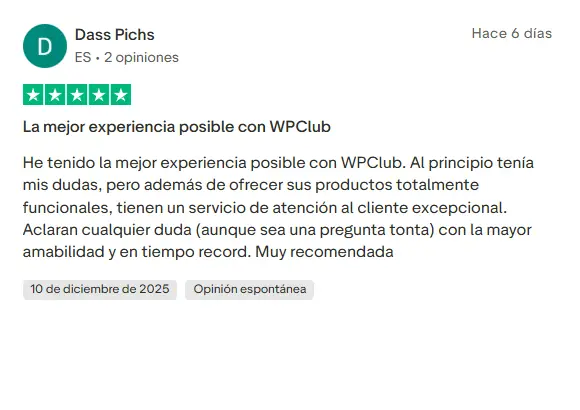
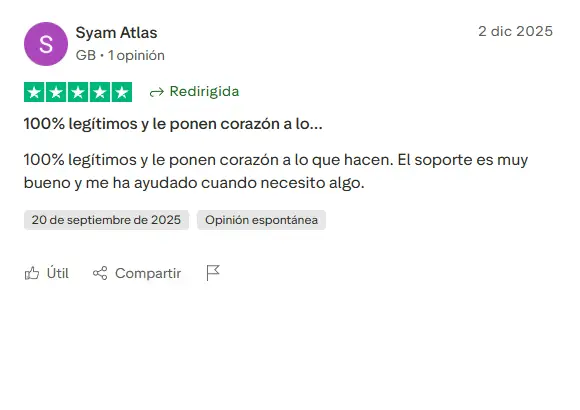
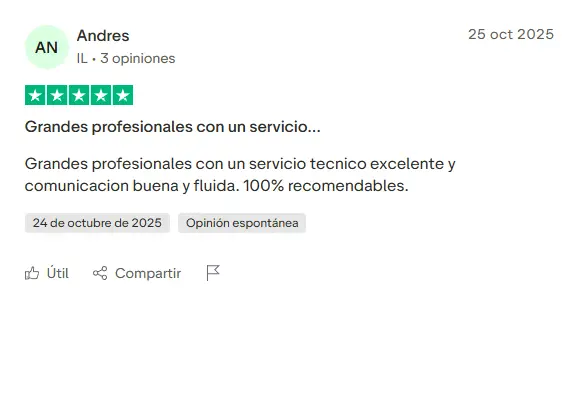
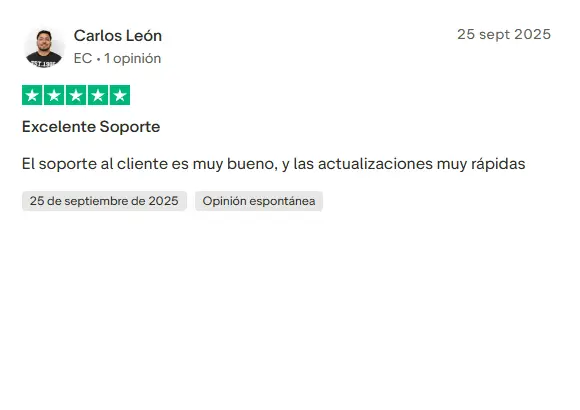
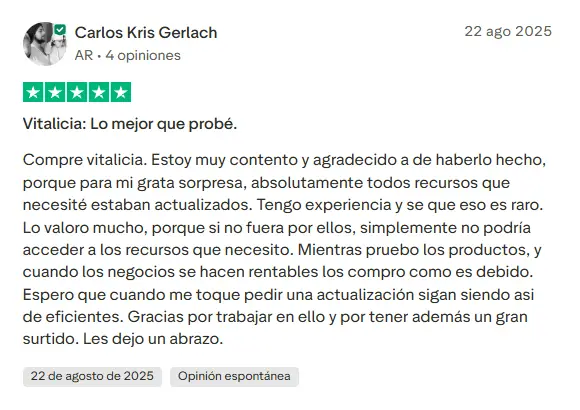
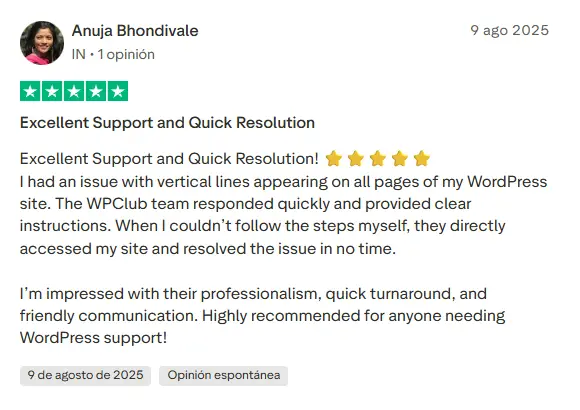
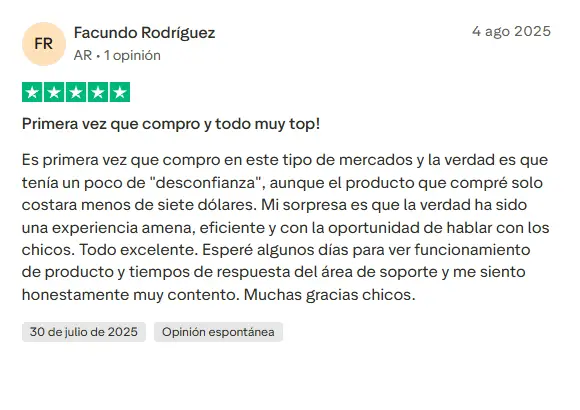
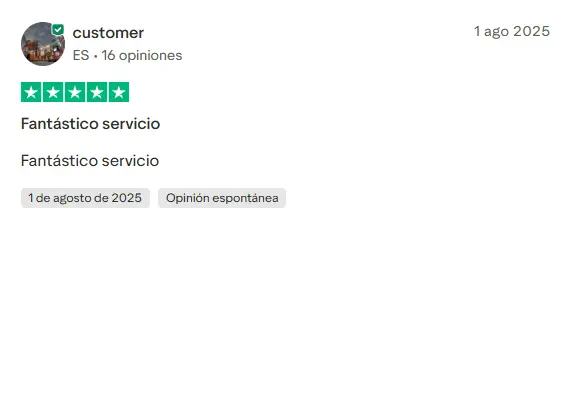
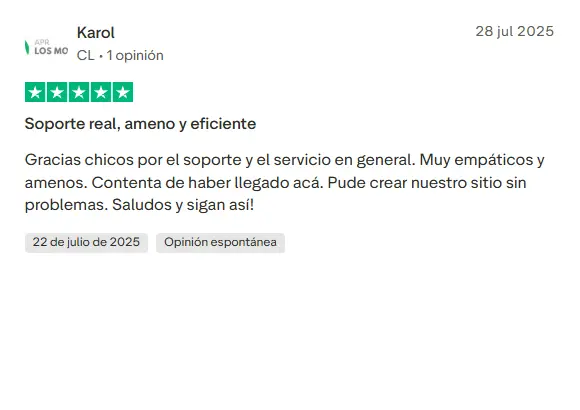
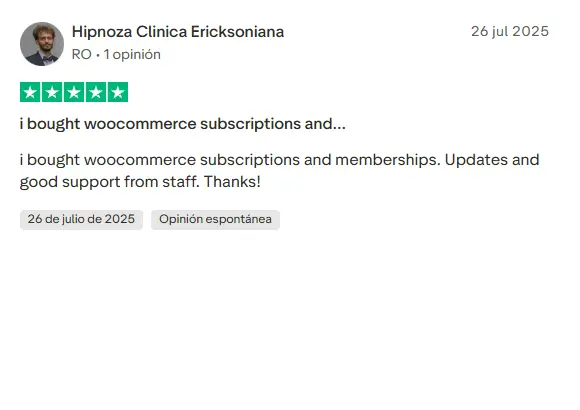
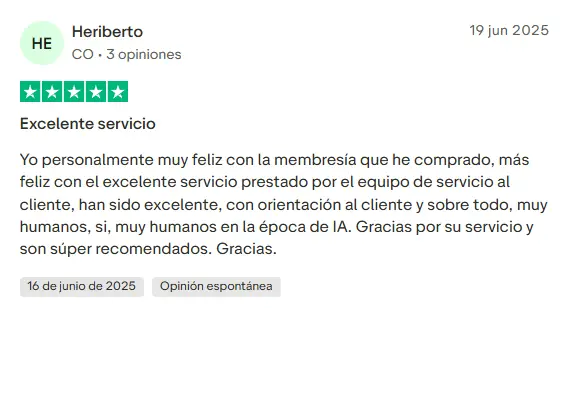
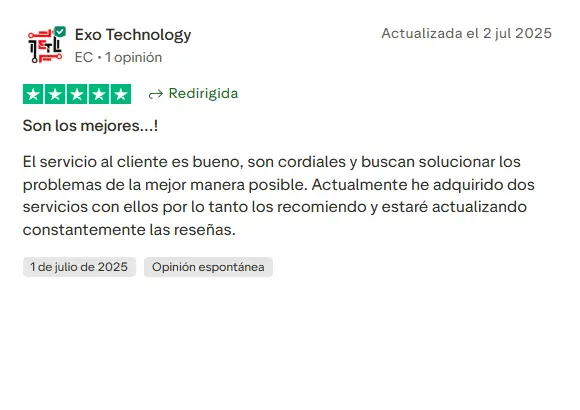
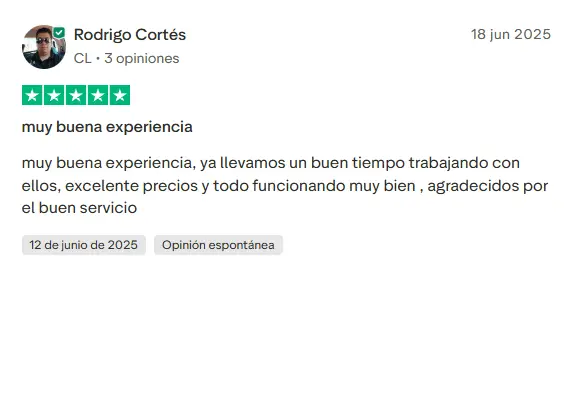
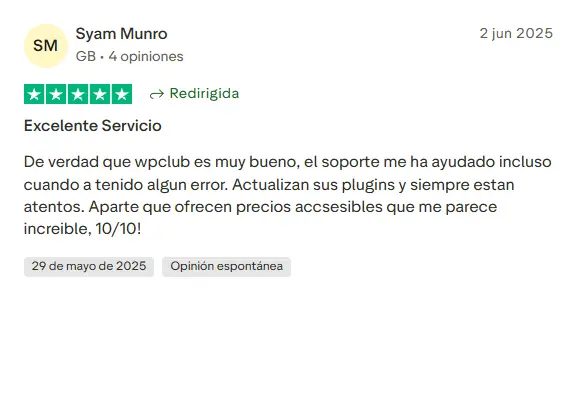
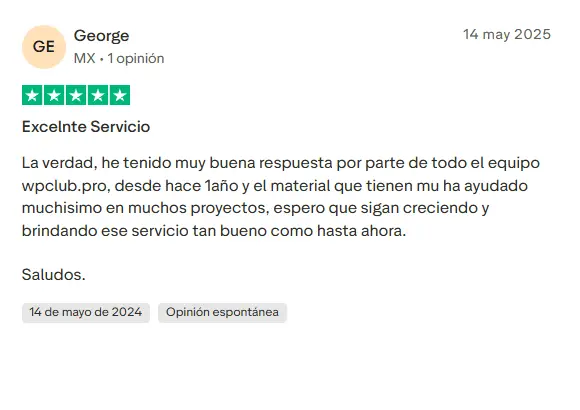
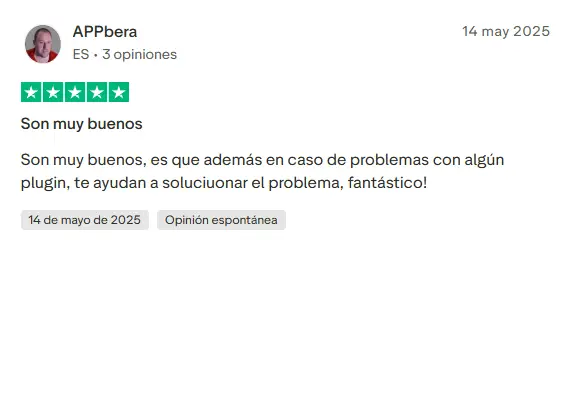
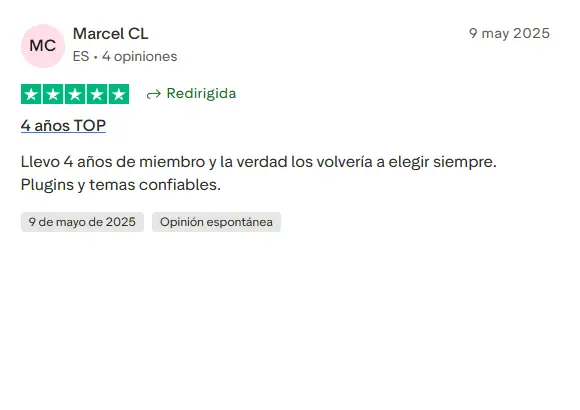
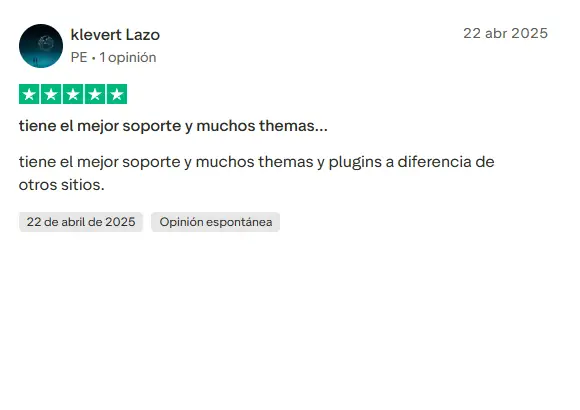
Our Reputation on Trustpilot
Many thanks to those who take the time to give us a review. Trustpilot. Each of your comments is very helpful. We strive to provide a rewarding experience for each member of our community, always with respect and love. We will be here!
WPClub Memberships
Access our entire catalog for a single payment. We offer three memberships: Monthly, Annual, and Lifetime (One-Time Payment).
- Save thousands of dollars
- No daily download limits
- No recurring payments
- Fast Downloads by AWS
- Quality service and support, validated since 2018
- We work with love for our community