

- Secure payment
- Spanish and English support
- With you since 2018
JoomUnited WP Media Folder Plugin
$39.00 El precio original era: $39.00.$5.99El precio actual es: $5.99.
Quick summary
WP Media Folder is a WordPress extension focused on organizing the Media Library with real folders and a visual structure similar to a file explorer. It's especially useful for sites with many images, documents, or downloadable resources. Its goal is to make finding, reusing, and managing files quick and easy, both for administrators and content teams who work daily within the dashboard.
What problem does it help solve?
In WordPress, the Media Library functions like a large drawer where everything gets mixed up. As a project grows, this linear view becomes a bottleneck: duplicate images, files whose use is unknown, and minutes wasted searching for "that image you uploaded months ago." If you've ever opened the library and not known where to begin, you've already encountered a problem.
In real-world projects, this is exacerbated when multiple editors or designers are working simultaneously. Each person names the files differently, and the library ends up a chaotic mess. This happens when the site accumulates years of content, old posts, past campaigns, and downloadable resources that were never deleted or reorganized.
WP Media Folder addresses this issue by allowing you to organize files into folders and subfolders, linking each resource to clear sections of the project: blog, landing pages, campaigns, clients, internal documents, etc. In this way, the media library ceases to be an endless list and becomes a structured environment where it's clear what belongs to which area of the site.
Why this solution makes a difference
The main difference with WP Media Folder lies in how it transforms daily file management within the dashboard. You stop thinking about "searching through thousands of items" and instead navigate through logical folders, just like on your computer. This directly impacts the time needed to prepare a blog post, landing page, or product page, because relevant images and documents are grouped exactly where you need them.
When you start noticing that creating a new page takes more time searching for images than writing the content, incorporating a folder structure changes your workflow. Reducing search effort decreases common errors, such as reusing outdated resources, uploading the same file multiple times, or linking to the wrong documents in product pages or forms.
On the other hand, WP Media Folder brings clarity to teamwork. Everyone can quickly identify where to save new resources and where to find existing ones. In this context, the media library ceases to be a place avoided because of its disorganization and becomes a reference point for designers, writers, marketing professionals, and content managers.
Signs you need this product
- Your Media Library is slow to load because it accumulates hundreds or thousands of files without any structure.
- You find yourself uploading the same image or document multiple times because you can't remember what you named it or when you added it.
- There is friction every time a new editor joins the project and comments that "they don't understand how the media is organized" because, in reality, it isn't.
- You have lost control over which files are still in use and which are remnants of old campaigns or sections that have already been deleted.
- The site has grown in sections, languages, and categories, but the library remains a unique list where everything is mixed together.
- You manage resources for multiple clients or brands on the same WordPress site and need to clearly differentiate what belongs to each one.
When does it make sense to use it (and when doesn't)
WP Media Folder provides real value when the number of files in your Media Library exceeds what a simple list can handle. If you work with active blogs, image-heavy product catalogs, recurring campaigns, or downloadable content, having folders, subfolders, and visual organization helps you maintain control and avoid the feeling of an overflowing drawer.
This also makes sense when multiple people are managing the site and you need clear rules: a folder for each section, content type, or client, with a structure that doesn't depend on who uploads the file. This way, any team member can find what they need without asking anyone else.
However, this type of advanced management isn't necessary for very small personal websites or early-stage projects with few pages and images. If your entire Media Library can be browsed in seconds and everything fits in one or two scrolls, organizing by folders won't be a priority. In those cases, it makes more sense to focus on the content and consider WP Media Folder when the volume of files starts to slow down daily management.
Who it fits best for
- Content managers and marketing professionals who work daily with WordPress and need to locate images and documents in seconds.
- Agencies that manage multiple projects within the same panel and require clearly separating resources by client, campaign, or business area.
- Ecommerce and online stores with multiple categories, product galleries and recurring visual material for banners, promotions and newsletters.
- Blogs with a high posting frequency, where cover images, downloadable resources, and graphics accumulate rapidly.
- Multidisciplinary teams (writers, designers, coordinators) who want a common organizational system, independent of the person who uploads the files.
Practical benefits
- Real operational improvement: The Media Library has moved from a flat list to a folder-based structured environment, reducing the steps needed to locate any resource and shortening the editing time for pages and posts.
- Clearer user experience: The file-related panel is more familiar, similar to a desktop file explorer, making it easier for new team members to adapt without lengthy explanations.
- Control and organization: Each resource has a defined place within the folder hierarchy, by section, content type, or client, which reduces the feeling of clutter and the risk of losing important files within the system.
- Time saving: Searching for images and documents no longer consumes minutes per task. This cumulative time reduction is especially noticeable in projects with frequent content updates.
- Error reduction: By grouping files by context, the use of obsolete or incorrect elements on new pages is minimized, avoiding visual confusion, outdated resource cards, or incorrect documents for download.
How it fits within WordPress
WP Media Folder integrates seamlessly into your existing media workflow within the dashboard. It doesn't create a separate area or a new process; instead, it reorganizes how you view and manage your existing files. When you upload an image or document, you can immediately assign it to the appropriate folder, maintaining site consistency from the outset.
In daily work, this means that when editing a post, page, or product, media selection is done by navigating through folders, not just an endless list. The structure you define for the media library ends up reflecting the structure of the site itself: main sections, categories, campaigns, recurring content, corporate resources, and temporary materials.
For those managing multiple projects under a single installation, WP Media Folder also acts as an organizational layer, clearly separating what belongs to each area. This prevents the Media Library from growing chaotically and instead follows a predefined logic, aligned with the WordPress content architecture.
Typical use cases
- Online stores that manage product photos, campaign banners, icons and downloadable resources, organized by product categories or seasons.
- Blogs with extensive content that require keeping cover images, internal graphics, and author illustrations separate, facilitating reuse without duplicates.
- Corporate projects with several lines of business, where it is important to have specific folders for each area, with logos, official documents, presentations and communication materials.
- Educational portals that group PDFs, videos, and images of courses into folders by subject, level, or program, improving the management of materials over time.
- Agencies that maintain websites for different clients need a visual organization that makes it clear which project each file belongs to, avoiding mixing elements between brands.
Frequently Asked Questions about WP Media Folder
When does it make sense to start using WP Media Folder on a new site?
WP Media Folder becomes useful as soon as you know your project will grow in the number of pages, posts, or visual resources. Implementing it early on makes it easier to ensure your folder structure keeps pace with your site's development. There's no need to wait until you have thousands of files; simply anticipate that there will be different sections, campaigns, or content types that should be separated from the start to avoid a mess that's difficult to undo later.
What happens to the files I already have in the Media Library?
Existing files remain available and can be relocated to folders within WP Media Folder without losing their links within the content. The process involves reviewing your current material and grouping it according to a logic that makes sense for your site: by section, content type, or client. This way, you gradually transform chaotic storage into an organized environment, without needing to re-upload images or documents.
How does WP Media Folder help teams with multiple editors or content creators?
When multiple people upload files, the risk of disorganization quickly increases. WP Media Folder offers a visible and shared folder structure that guides the entire team on where to store each item. This way, instead of relying on individual storage or specific file names, everyone works within the same organizational framework. This reduces repetitive questions like “Where is this image?” and streamlines collaboration across different roles.
What advantages does it offer compared to only using date filters or searching in the Media Library?
Filtering by date or performing specific searches is helpful in certain situations, but it doesn't replace an established structure. WP Media Folder adds a layer of visual organization that remains consistent over time, regardless of when a file was uploaded or how it was named. This is especially useful for assets that are reused over months or years, such as logos, corporate images, legal documents, or recurring campaign materials.
Does it make sense to use WP Media Folder on small or single-page sites?
On very small sites with few images and no anticipated growth, advanced organization may not be a priority. If your Media Library is effortless to navigate and all files are easily identifiable at a glance, the benefit will be limited. WP Media Folder is designed for situations where the volume of media and the frequency of updates make manual searching time-consuming and confusing for daily management.
Conclusion
WP Media Folder exists to solve a specific problem: the disorganization of the Media Library when the volume of files grows and the standard listing becomes impractical. By providing a clear and consistent folder structure for your site, it reduces search times, avoids unnecessary duplicates, and improves teamwork. If you've already noticed that locating an image has become a tedious task, organizing your library with this approach will make a direct difference in your daily WordPress workflow.
Your individual purchase includes:
- Lifetime updates.*
- Product ready to use.
- Immediate access to the product.
- Clean and virus-free files.
- GNU GPL V2/V3 License
- Technical support in Spanish and English.
* In the case of memberships, the period during which you will receive updates will depend on the type of membership purchased: monthly, annual, or lifetime.
Get your questions answered here
Here you'll find answers to frequently asked questions about our service: how it works, what it includes, and how to get the most out of it.
On how many websites can I use the products?
You can use any product from our store on any website you want.
Will I get updates?
Absolutely. If you buy an individual product, you'll get lifetime updates for that product.
On the other hand, if you purchase a membership, you will receive updates until your membership expires.
What if I have a problem?
First of all, we want you to know that you can count on us. We will assist you and provide the necessary support, so you can rest assured.
On the other hand, it is important for you to know that, given the time difference between countries, your time and ours may not be the same, so we will be delayed accordingly.
Our opening hours start at 9 AM from Monday to Friday, UTC -3. We are open until around 6 PM.
Do they provide technical support?
Yes, and regarding the time, it is usually on average within 24 to 48 business hours.
However, there are times when we have already provided an answer and solution in less than a day, depending on the case.
Are there download limits?
No. We don't believe in that format, so you can download as many times as you want. No problem. We pay for high-quality professional storage precisely to avoid problems.
Do they provide license keys?
No. Giving out the keys is not a viable option, as we have had experiences where they end up circulating everywhere and we can even lose the associated accounts.
That said, all products are original and, in cases where a license key is required to function, we will take care of pre-activating them for you.
Does my purchase include an invoice?
Yes. After payment, you will be able to access your invoice immediately in the "Purchases" section of your user account.
That is why it is important that you properly complete the information requested at the time of payment.
Is there a warranty?
Yes, of course. If there's a problem we can't resolve, or if there's an external issue that doesn't have a general solution, you'll receive support and, if necessary, a full refund. We have a 14-day refund policy from the date of purchase.
- It should be noted that there is no warranty if the product works well and it simply wasn't what you wanted.
There have been instances where someone buys a product, the product works perfectly, but they don't like it and want a refund, keeping the product. That's not right.
However, everything is evaluable and reasonable. Let's use judgment together.
What are the opening hours?
Our opening hours are:
- Monday to Friday, from 9 a.m. to 6 p.m.
- Saturday and Sunday: No service.
UTC -3 time

Reviewed by the WPClub team
At WPClub, we carefully review each product before listing it. Our team evaluates its key features, compatibility, and performance to provide you with reliable, up-to-date, and helpful information when choosing and using each resource available in our store.
Download previous versions
If you have purchased this product, or have an active membership, you can download previous versions as we release them, without any limits or restrictions.
| Nombre del producto | Versión | Tamaño | Fecha | Descargar |
|---|---|---|---|---|
| JoomUnited WP Media Folder Plugin | 6.2.4 | 5.4 MB | 06/17/2026 | Unirse ahora |

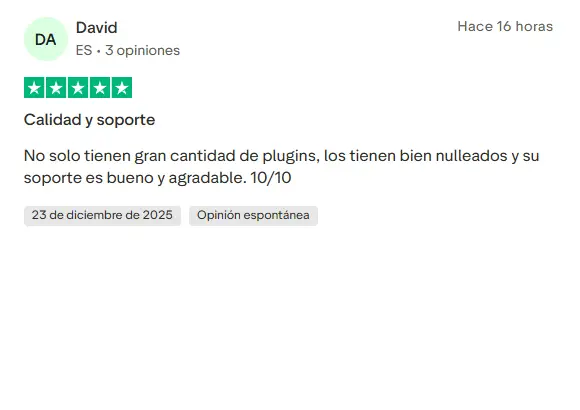
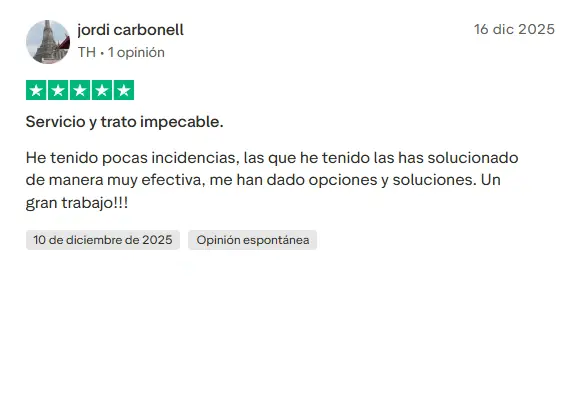
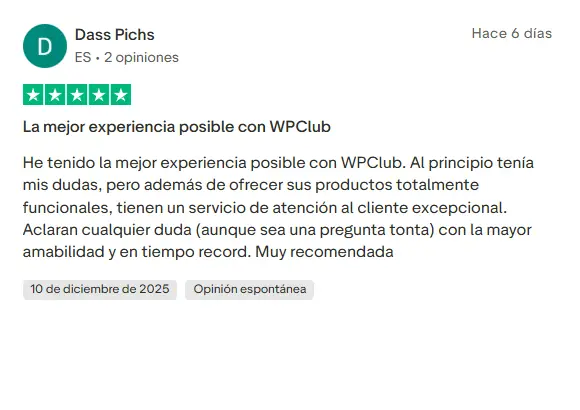
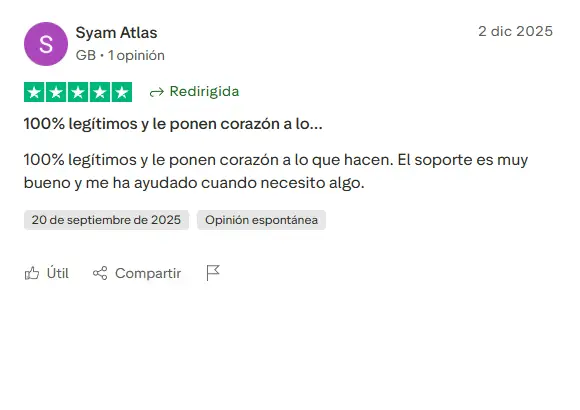
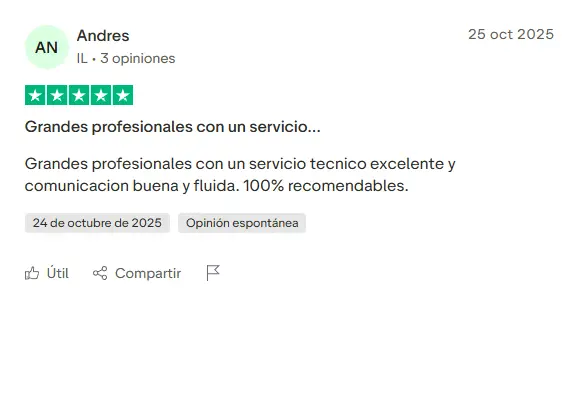
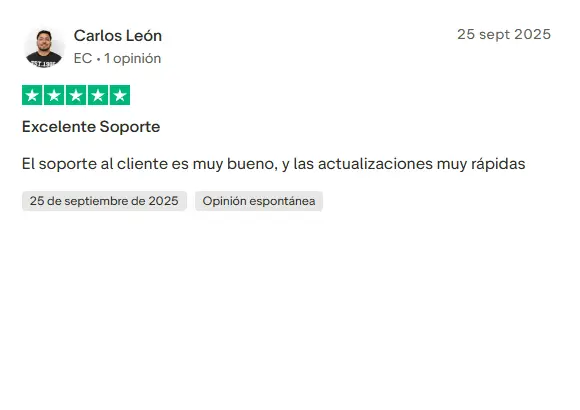
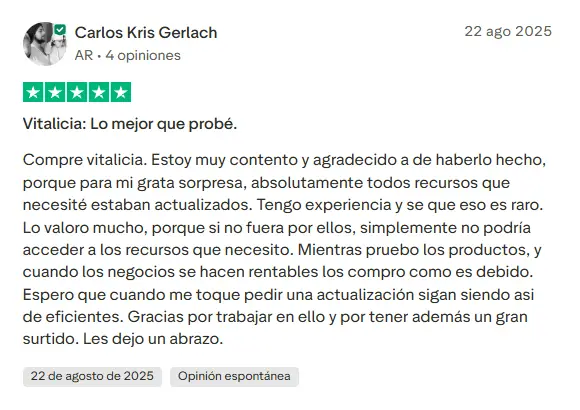
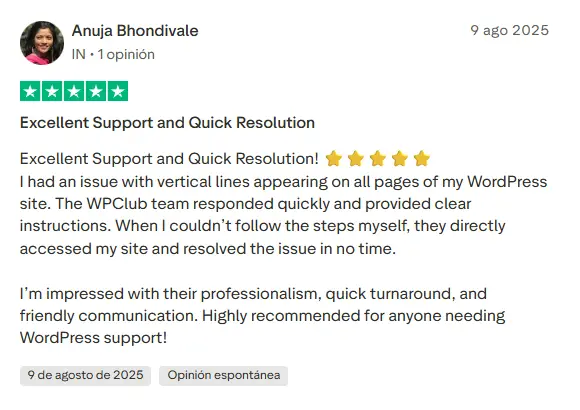
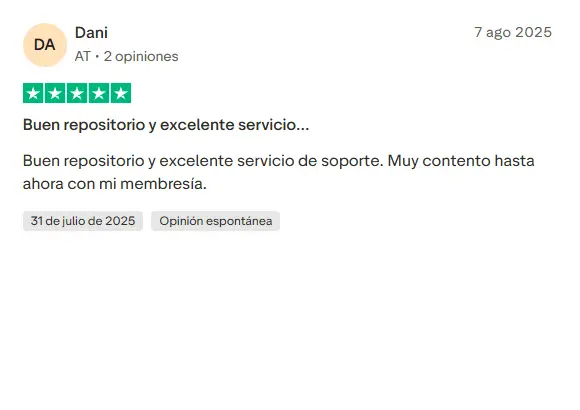
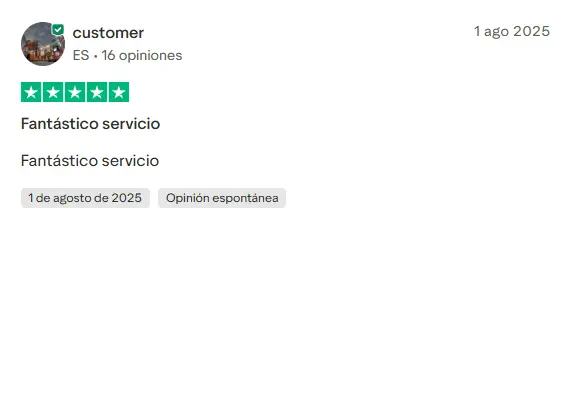
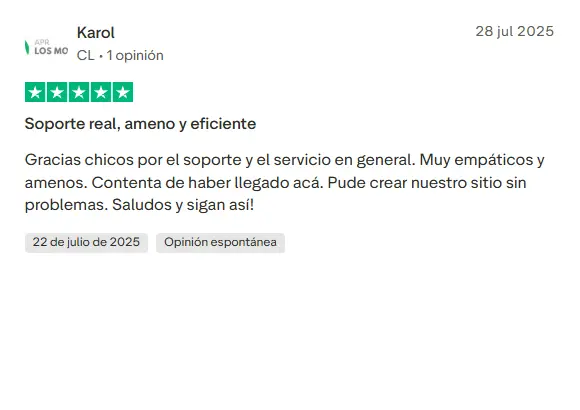
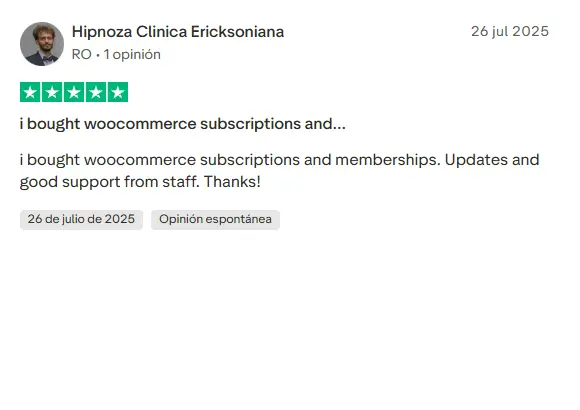
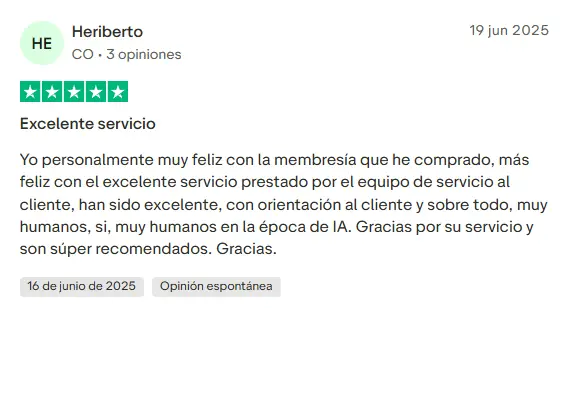
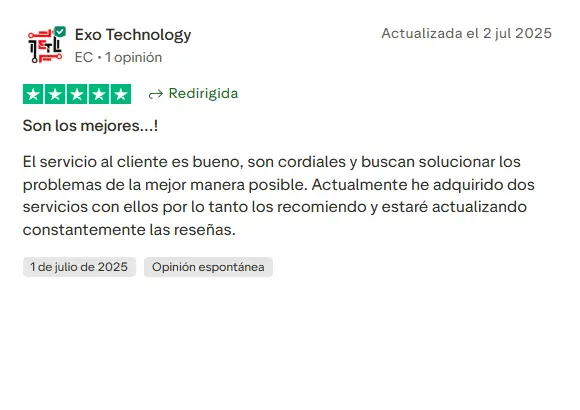
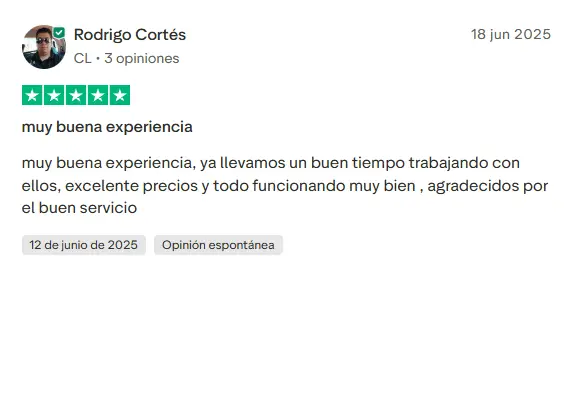
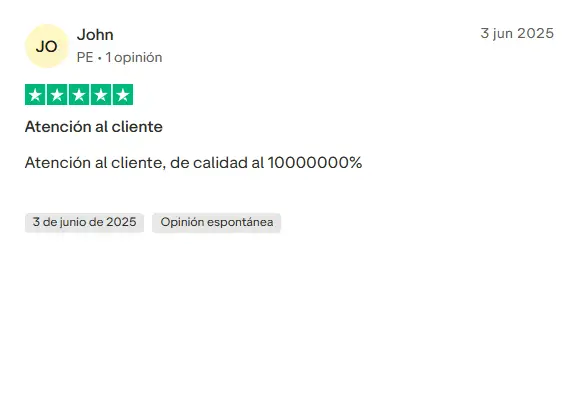
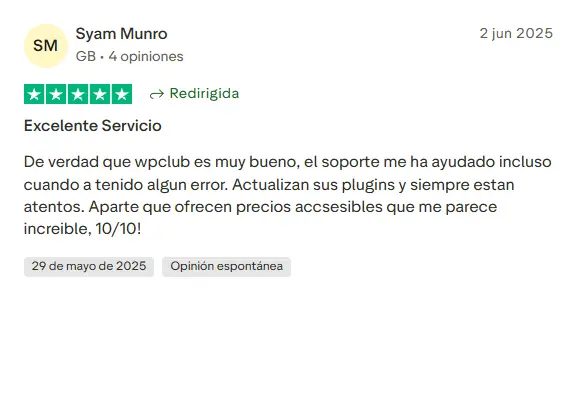
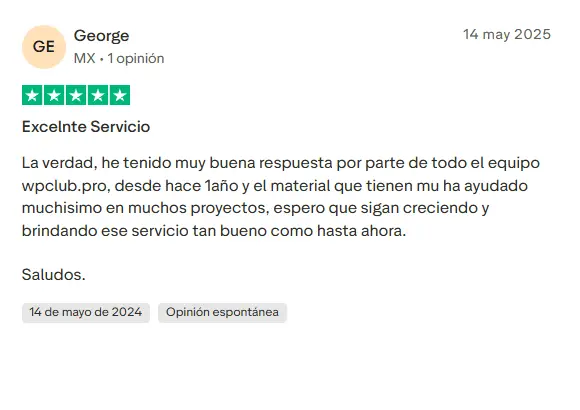
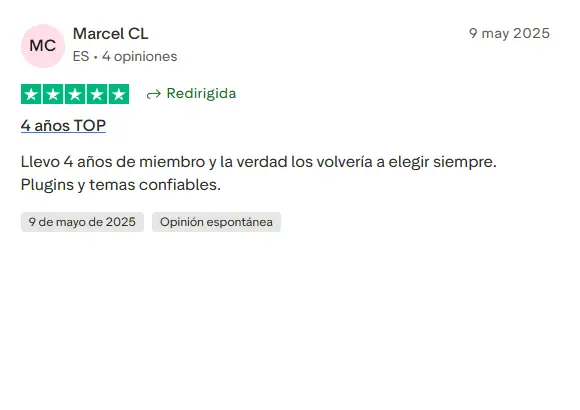
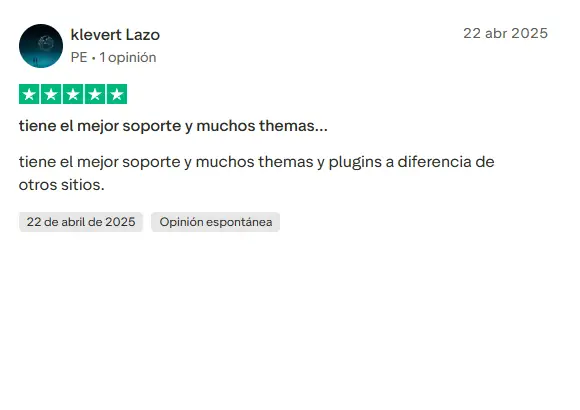
Our Reputation on Trustpilot
Many thanks to those who take the time to give us a rating on Trustpilot. Each and every one of your comments is very helpful to us. We strive to provide a rewarding experience for every member of our community, always with respect and care. We'll be here!


WPClub Memberships
Access our entire catalog for a single payment. We offer three memberships: Monthly, Annual, and Lifetime (One-Time Payment).
- Save thousands of dollars
- Unlimited daily downloads
- No recurring payments
- Fast downloads by AWS
- Quality service and support, validated since 2018
- We work with love for our community